STEP-BY-STEP ONBOARDING

IPTV Setup Guide.
Step by Step.

Setting up Subscription IPTV UK takes under 5 minutes. Connect your compatible hardware, enter your Xtream Codes API or M3U playlist URL, and start streaming live 4K channels instantly. If you need a player app first, explore our supported IPTV players and devices.

Before You Begin Setup.

  • Device & Broadband

    Ensure your device (Firestick, Smart TV, or Apple TV) is powered on and connected to stable broadband (minimum 25–30 Mbps for 4K).

  • IPTV Player Application

    Download a verified player application (TiviMate, IPTV Smarters Pro, or XCIPTV) directly from your official TV app store.

  • Login Credentials

    Keep your WhatsApp activation message ready, containing your Server URL, Username, and Password (Xtream Codes API) or M3U playlist link.

SETUP WALKTHROUGH

6-Step Onboarding Walkthrough.

Follow these simple steps in any standard IPTV player application to connect your pass in minutes.

  1. 01

    Verify Connection

    Ensure your TV has a stable internet connection. An Ethernet cable or 5 GHz Wi-Fi band delivers optimal performance for uncompressed 4K streaming.

  2. 02

    Install Player App

    Download your chosen IPTV player from the Amazon Appstore, Google Play, or Apple App Store. Recommended: TiviMate (Android/Firestick) or IPTV Smarters Pro.

  3. 03

    Enter Login Credentials

    Open the app, select "Add User" or "Xtream Codes API", and input your Server URL, Username, and Password. Xtream codes are case-sensitive.

  4. 04

    Allow Channels to Sync

    Allow 30–60 seconds for your initial playlist sync. Over 35,000 live channels, categories, and 250,000 VOD movies and series will populate your guide.

  5. 05

    Test Playback

    Select a live UK channel (e.g. BBC One or Sky Sports Main Event) to verify high-definition picture quality, low-latency audio, and zero-buffering stream stability.

  6. 06

    Customise Favourites & EPG

    Add your daily channels to a "Favourites" group for quick access. Verify that your EPG time offset displays current UK GMT/BST showtimes.

TWO STANDARD LOGIN METHODS

Xtream Codes API vs M3U URL: Which is Better?

M3U URLs and Xtream Codes are alternative methods to load your subscription playlist into your player app, not separate packages. Use only the credentials delivered upon order confirmation. Never share credentials in public forums.

M3U Playlist URL

  1. Open the section in your app for adding a playlist or M3U URL.
  2. Assign a memorable name (e.g. Subscription IPTV UK).
  3. Paste your complete M3U link into the URL field.
  4. Save and wait for channel categories to populate.

Your M3U URL contains your private access token. Keep it secure like a password.
Xtream Codes API (Recommended)

  1. Select "Login with Xtream Codes API" in your player app.
  2. Enter a connection name (e.g. UK British IPTV).
  3. Input Server URL, Username, and Password in their dedicated fields.
  4. Click save and allow channels and EPG to download.

Server URL and M3U links are distinct fields. Do not paste the full M3U link into the Server URL field.

MAG, Formuler & Stalker Portals

On dedicated set-top boxes, connection is made via Stalker Portal or device MAC address. Follow manufacturer instructions.

Send your device MAC address to our WhatsApp team. We register the MAC on our portal and provide your portal URL.

SETUP FAQ

Troubleshooting Setup & Activation.

Player rejects login credentials.

Verify that your chosen login mode matches your details (Xtream vs M3U). Ensure exact uppercase and lowercase letters with zero accidental spaces. If an error persists, message our WhatsApp support with the exact error message.

Playlist fails to download or sync.

Check your home broadband connection and force close the app. Reopen and trigger "Refresh Playlist" in settings. Never factory reset your hardware before checking with our support line.

Switching playback to another household TV.

Standard subscriptions include 1 simultaneous active stream. Stop playback on the first device before launching on your second screen. For multi-room access, inquire on WhatsApp.

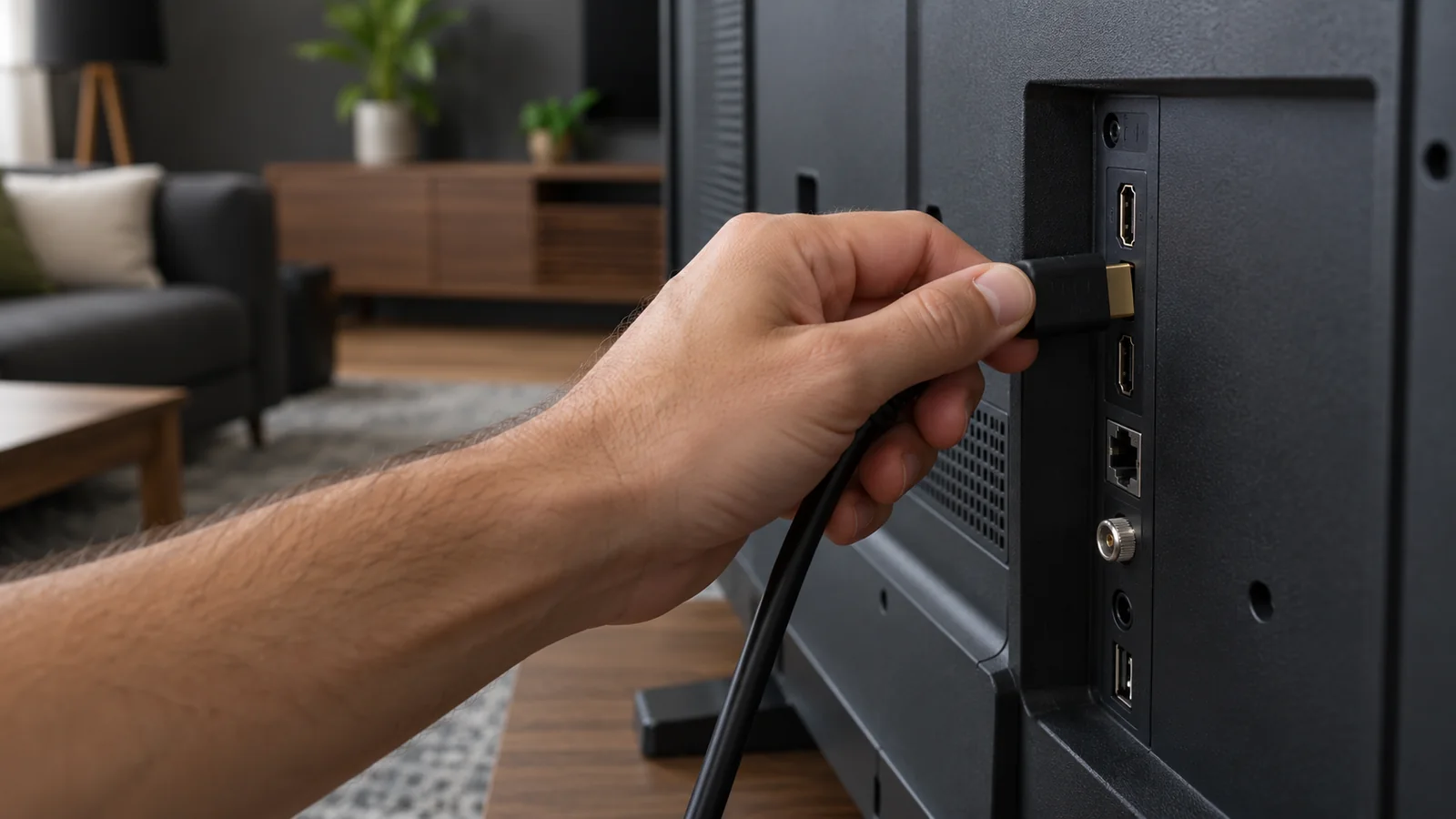
IPTV setup guide illustration: connecting streaming hardware via HDMI.
Streaming hardware connects via HDMI. Built-in Smart TV apps do not require external HDMI dongles.

Conducting Your First Live Stream Test

Setting up your IPTV pass is complete once video streams smoothly. Verify full functionality before arranging custom bouquets or altering advanced settings:

  • Play two different channel categories (e.g. BBC One HD and Sky Sports Premier League) and confirm crystal-clear 4K/FHD picture and audio sync.
  • Return to the main channel directory and switch between live TV and on-demand movies.
  • Close and restart your application once to verify saved login credentials persist reliably.

Configuring EPG, Audio Tracks & Subtitles

The Electronic Program Guide (EPG) operates independently of live video playback. If live channels stream smoothly but TV guide listings are blank, simply click "Update EPG" in your app menu. Verify device time zone is set to GMT/BST.

Access in-stream player settings to choose alternative audio channels (e.g. stadium atmosphere vs commentary) and toggle multi-language subtitles on demand.

Secure Credential Entry & Privacy

Always enter credentials privately on your own television or phone. When using web portal login methods (such as Smart IPTV or IBO Player mac uploaders), ensure you are on the verified official domain.

If you encounter an error message during setup, message our WhatsApp support line with the exact error banner. Our team will verify account credentials and assist you immediately. Troubleshooting guide provides a clear runbook if channels load but playback will not start.

WhatsApp